> ## Documentation Index
> Fetch the complete documentation index at: https://docs.firmable.com/llms.txt
> Use this file to discover all available pages before exploring further.
# ChatGPT
> Add Firmable as an app in ChatGPT
Add the Firmable MCP server as an **app** in ChatGPT so it can query
Firmable data inside your conversations.
You'll need the **MCP URL** and **Client ID** — see [**URL & Client ID**](/mcp/credentials).
## Add the app
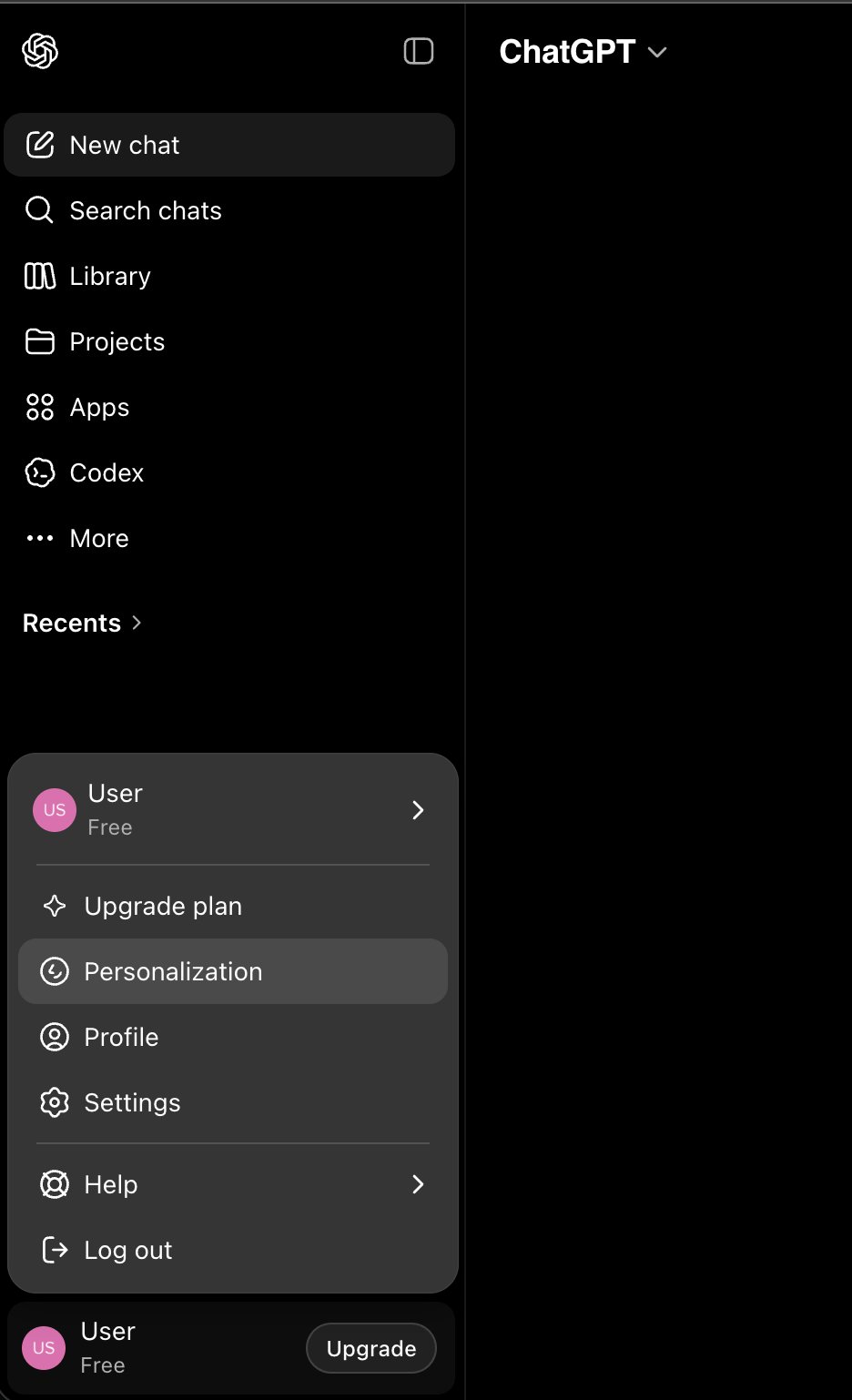
In [ChatGPT](https://chatgpt.com), click your profile at the bottom of the sidebar and choose **Settings**.
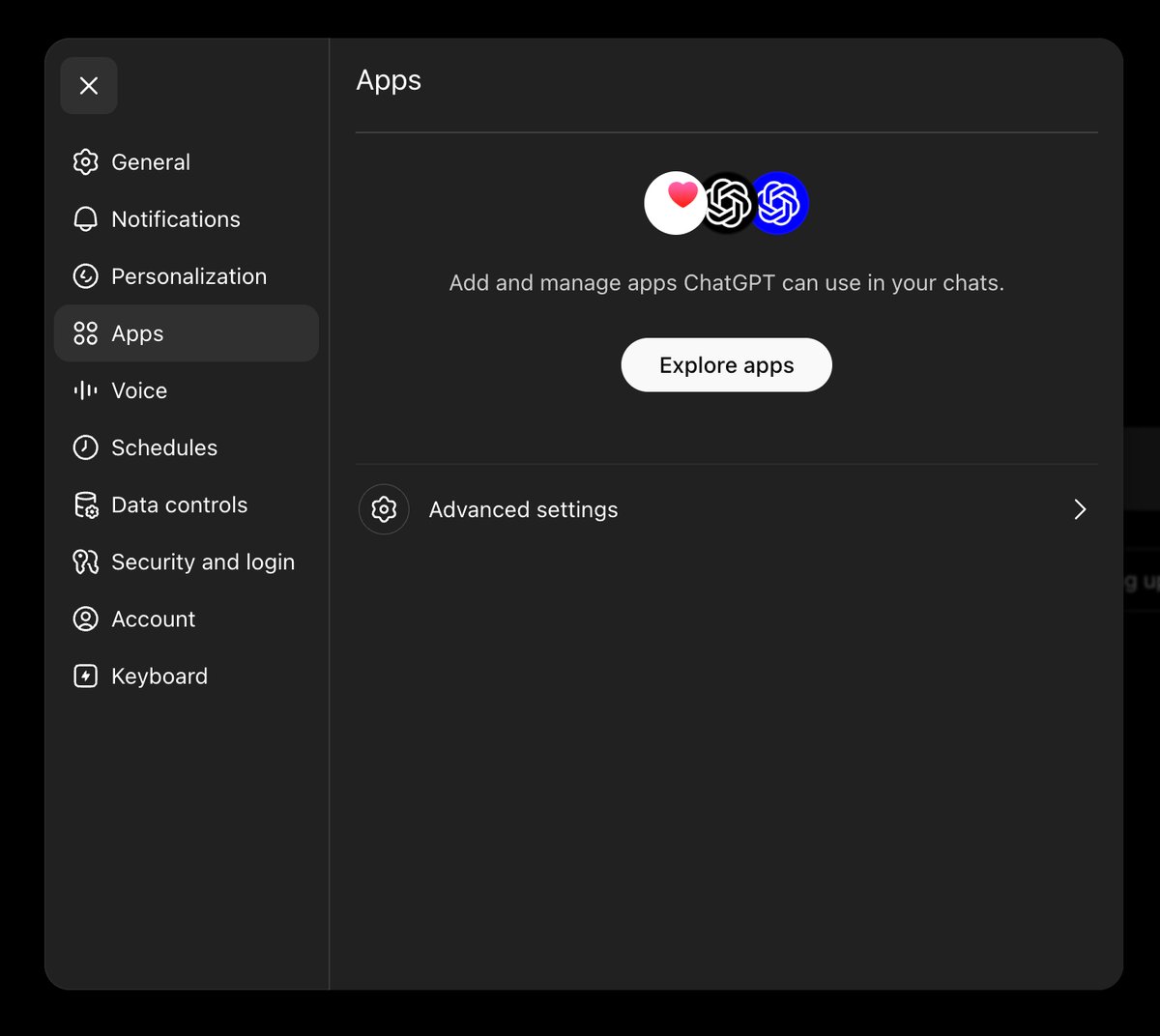
 Go to the **Apps** tab, then click **Advanced settings**.
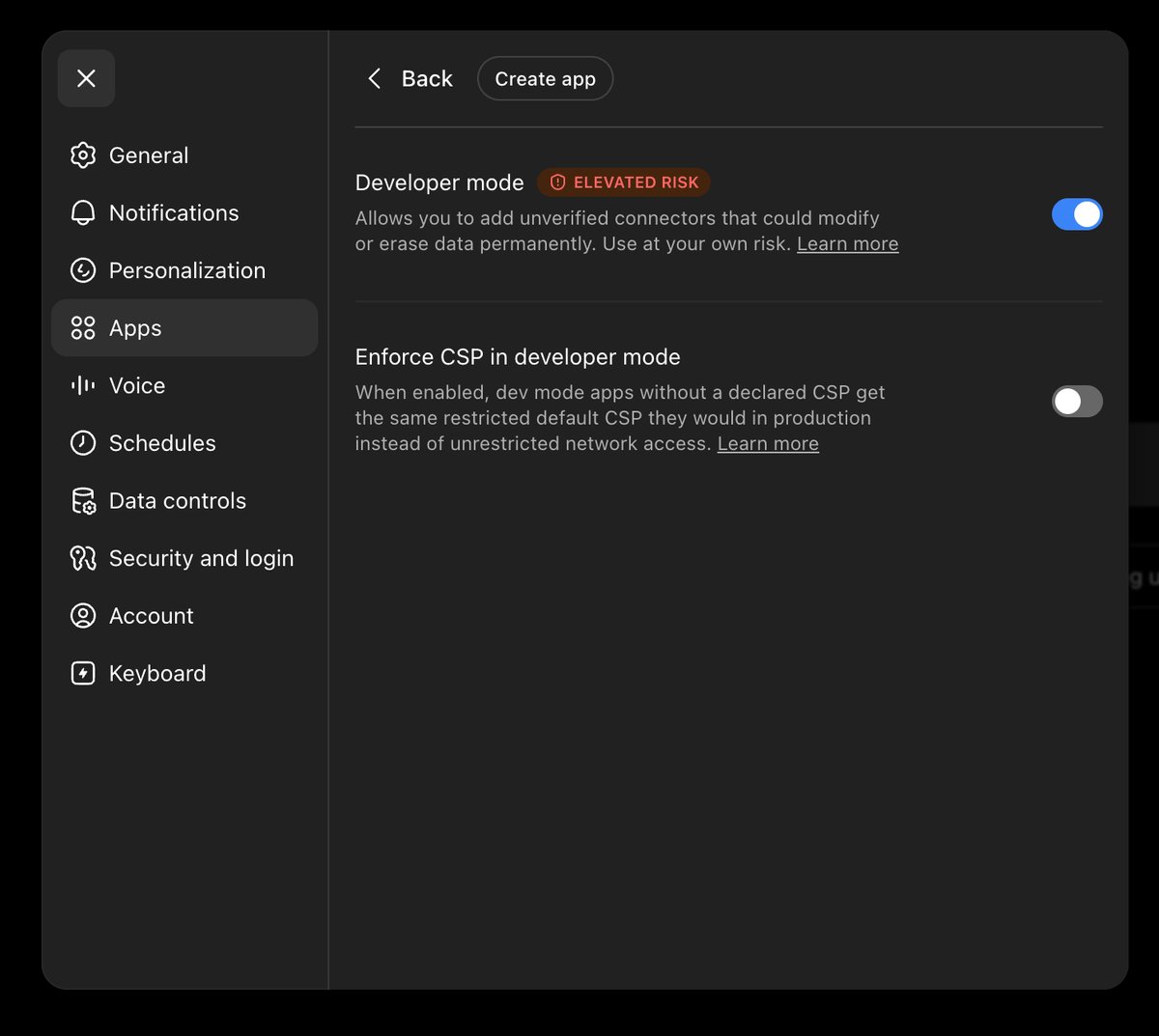
 Turn on **Developer mode** (this is what lets you add an unverified custom connector), then click **Create app**.
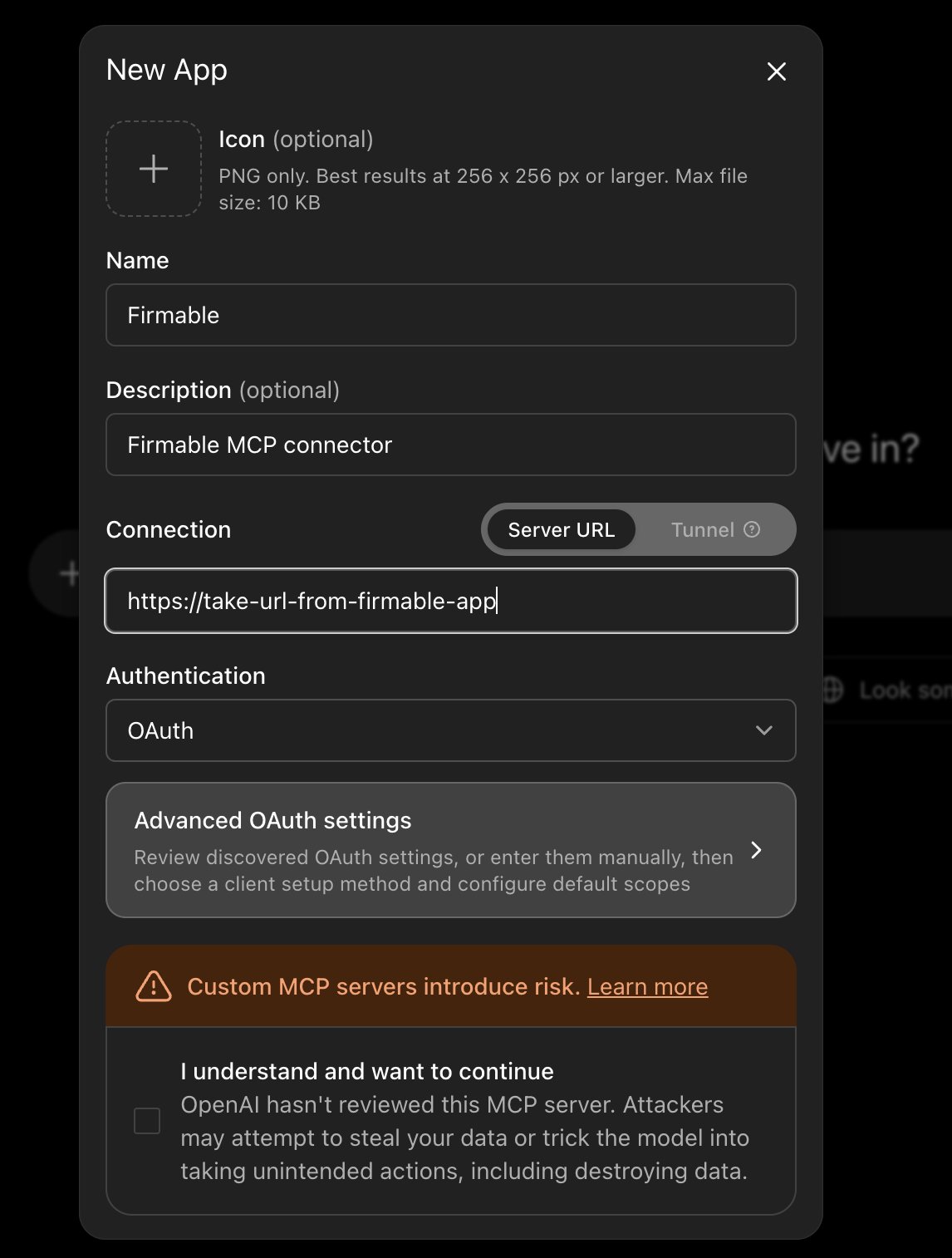
 Fill in the **New App** form:
* **Name:** anything you like — this guide uses `Firmable`
* **Description** *(optional)*: e.g. `Firmable MCP connector`
* **Connection:** keep **Server URL** selected and enter the MCP URL (from [**URL & Client ID**](/mcp/credentials))
* **Authentication:** `OAuth`
Fill in the **New App** form:
* **Name:** anything you like — this guide uses `Firmable`
* **Description** *(optional)*: e.g. `Firmable MCP connector`
* **Connection:** keep **Server URL** selected and enter the MCP URL (from [**URL & Client ID**](/mcp/credentials))
* **Authentication:** `OAuth`
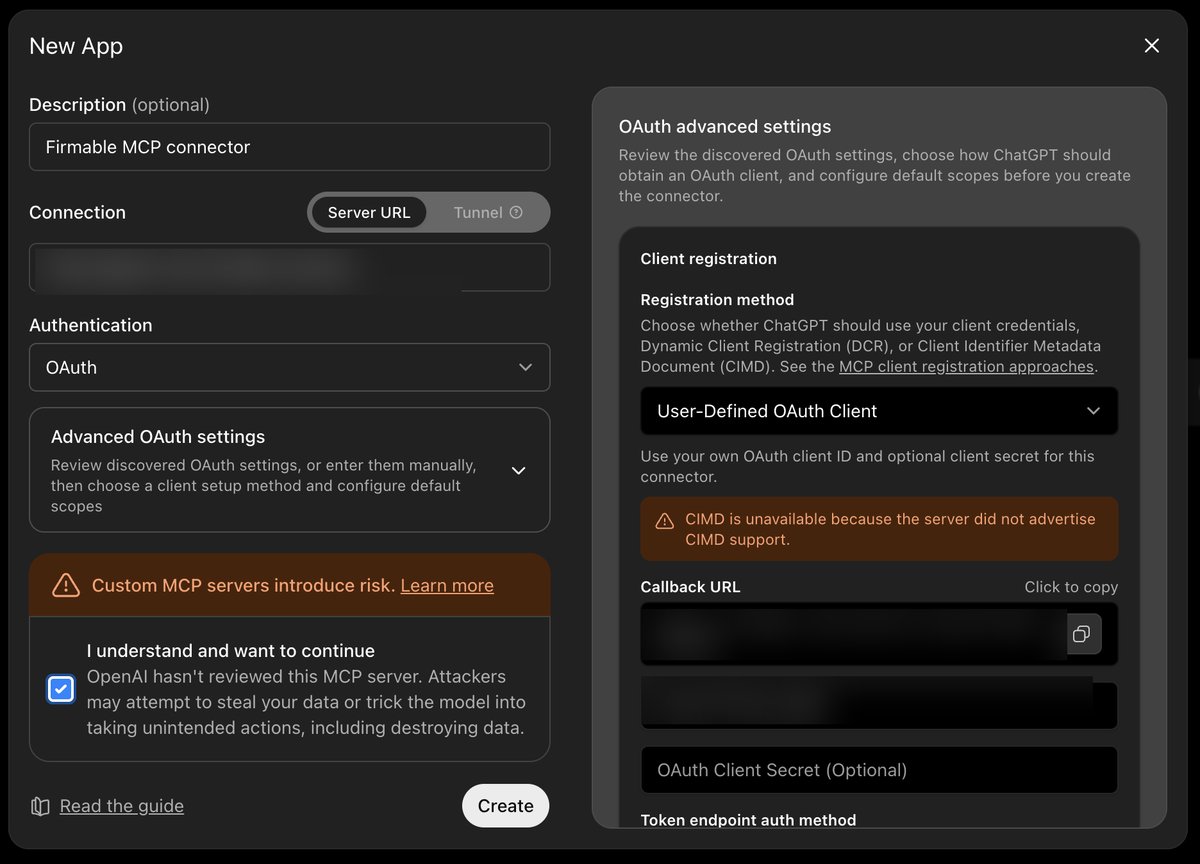
 Expand **Advanced OAuth settings** and set the **Registration method** to **User-Defined OAuth Client** —
this lets you use the Firmable credentials. Enter the **Client ID** (from
[**URL & Client ID**](/mcp/credentials); leave the secret blank unless Firmable gives you one). If Firmable asks for a redirect/callback URL, copy the **Callback URL** shown here.
Finally, tick **I understand and want to continue** to acknowledge that custom MCP servers aren't reviewed by OpenAI, then click **Create**.
Expand **Advanced OAuth settings** and set the **Registration method** to **User-Defined OAuth Client** —
this lets you use the Firmable credentials. Enter the **Client ID** (from
[**URL & Client ID**](/mcp/credentials); leave the secret blank unless Firmable gives you one). If Firmable asks for a redirect/callback URL, copy the **Callback URL** shown here.
Finally, tick **I understand and want to continue** to acknowledge that custom MCP servers aren't reviewed by OpenAI, then click **Create**.
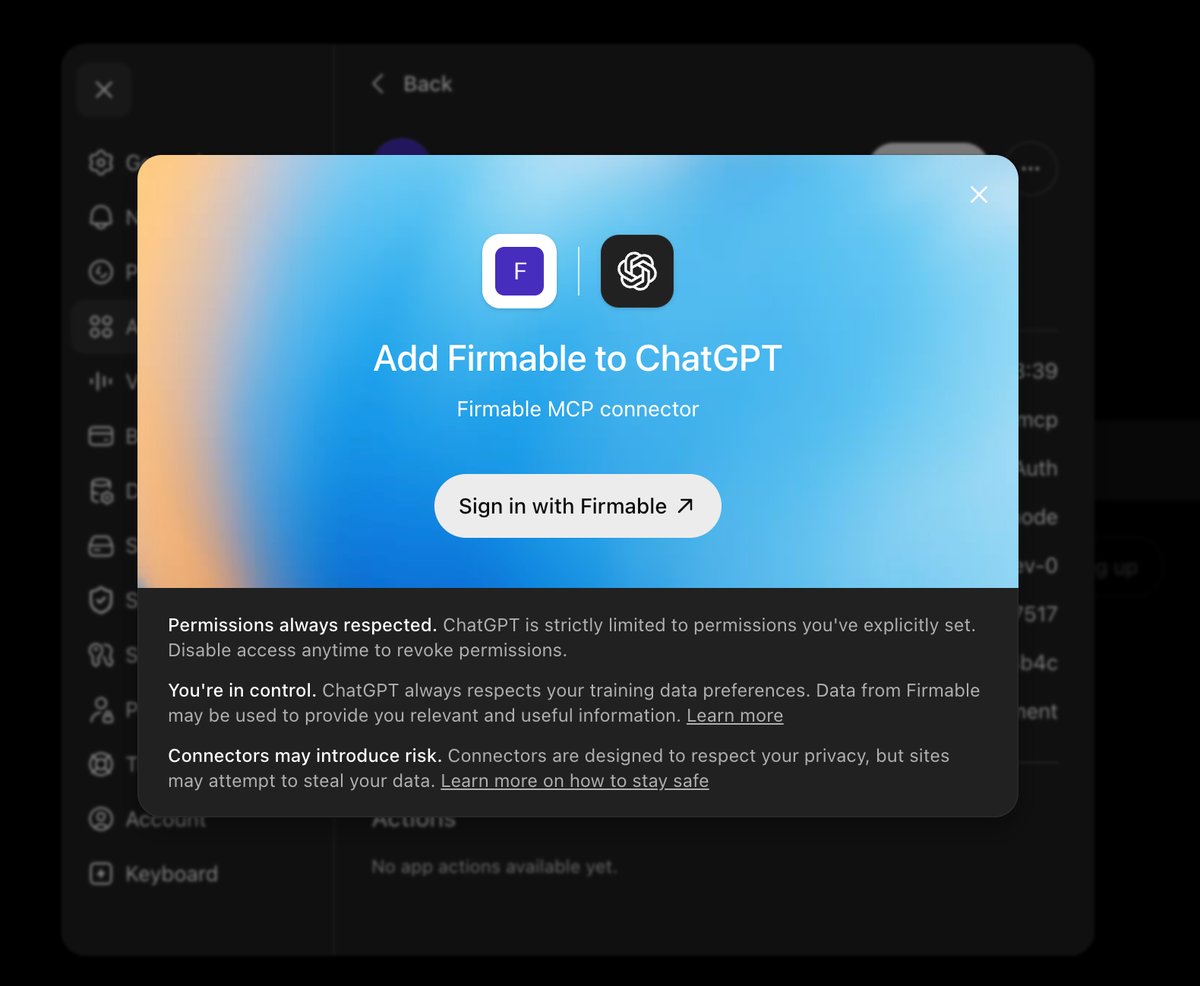
 On the prompt, click **Sign in with Firmable**.
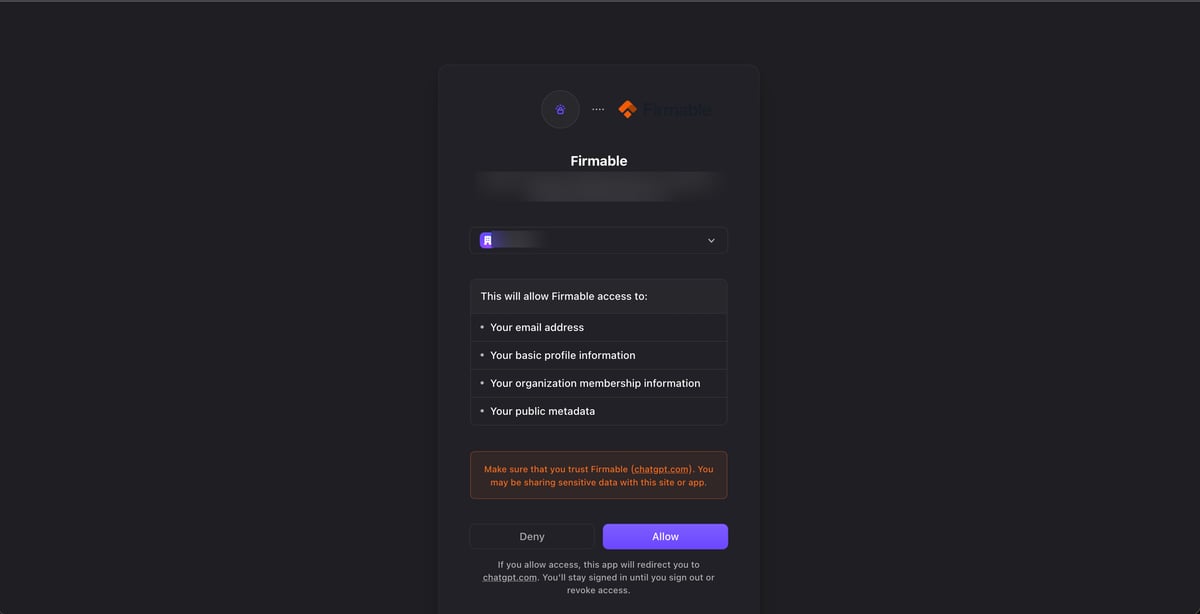
 Click **Allow** to grant ChatGPT access to Firmable.
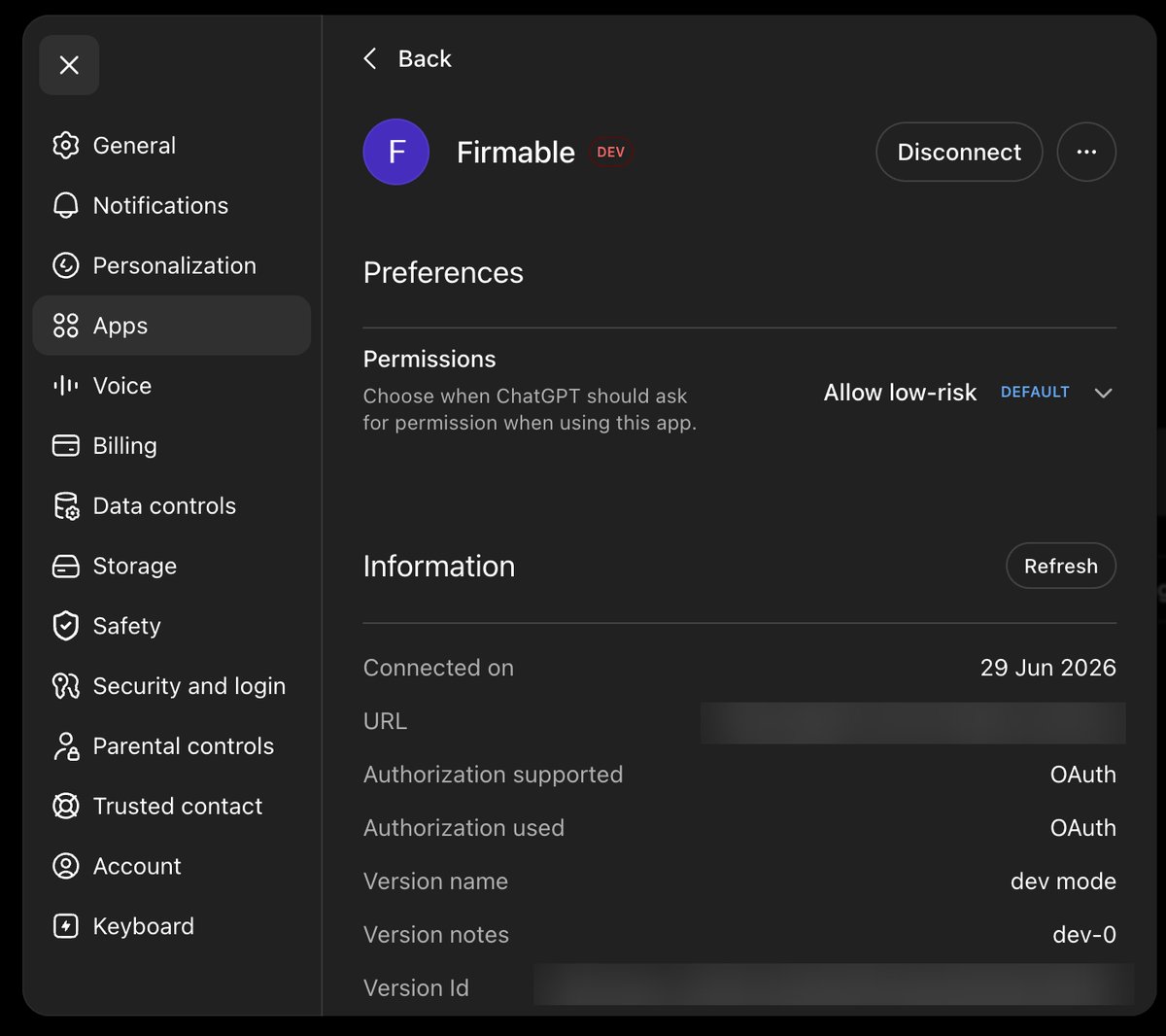
 Firmable is now connected. Choose when ChatGPT can use it, then enable **Firmable** from the **+** →
**More** menu in a chat to start using it.
Firmable is now connected. Choose when ChatGPT can use it, then enable **Firmable** from the **+** →
**More** menu in a chat to start using it.