1
Open account settings
In the Firmable app, click the profile menu in the top-right corner and
choose Manage account.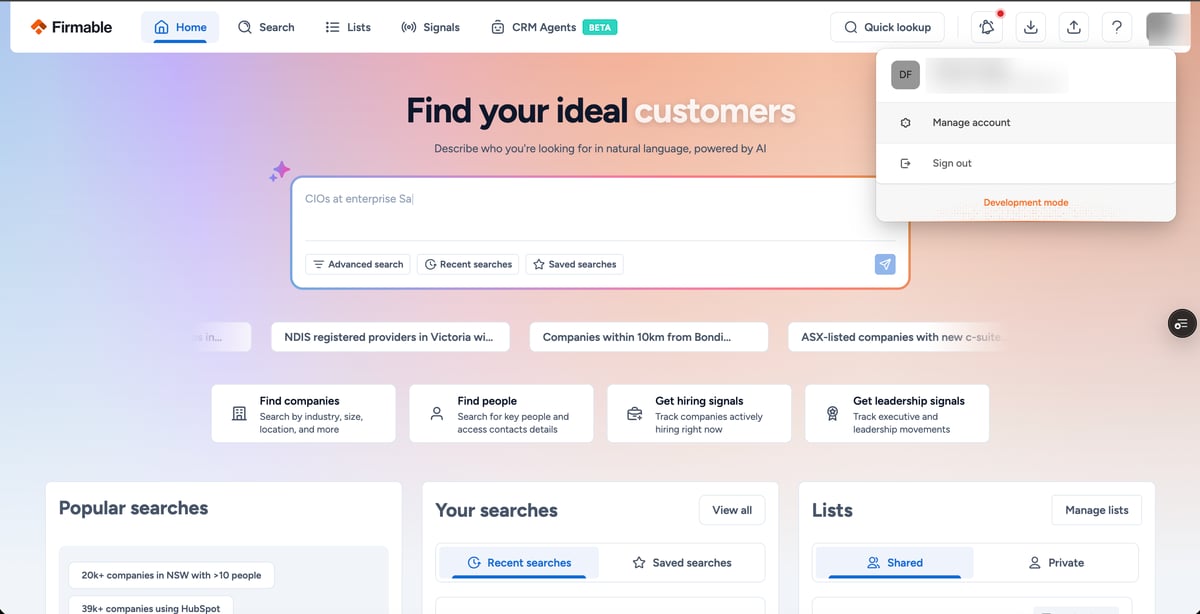
2
Go to Integrations → MCP
In Account settings, open the Integrations tab and click the MCP card.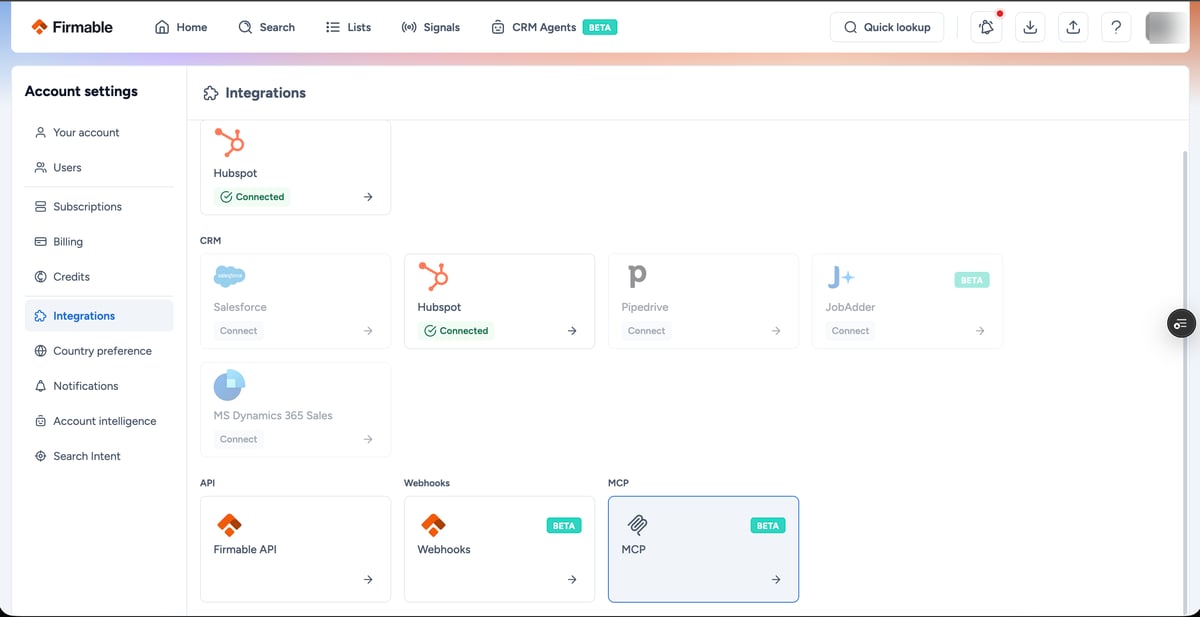
3
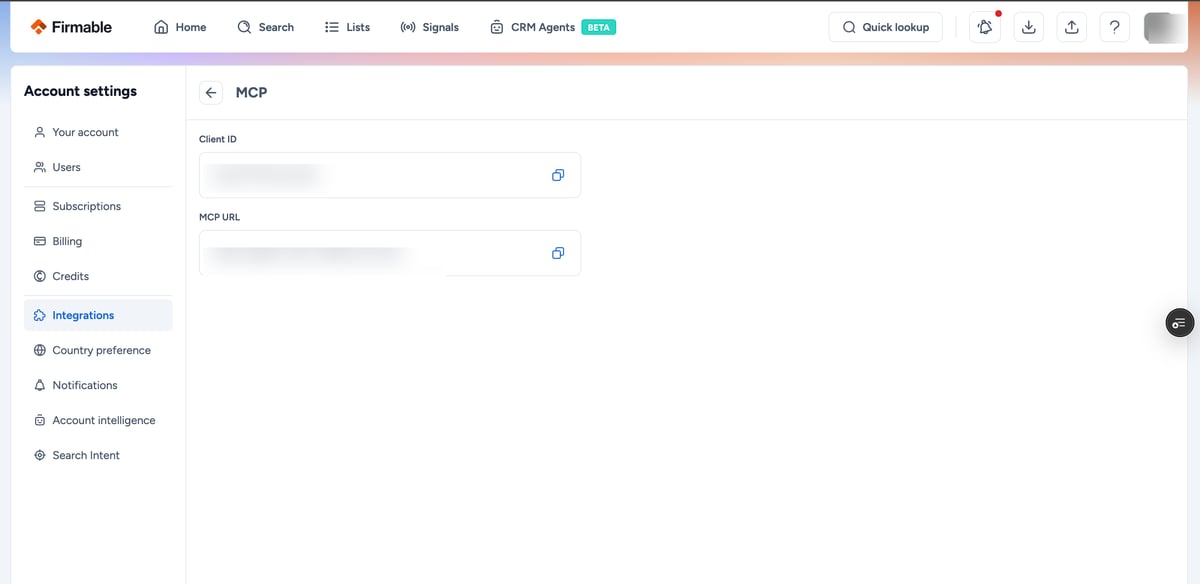
Copy the Client ID and MCP URL
Use the copy buttons to grab the Client ID and MCP URL. Keep them handy — you’ll paste
them into Claude, ChatGPT, or your developer tool when adding the connector.